> ## Documentation Index
> Fetch the complete documentation index at: https://togetherai-migration.mintlify.site/llms.txt
> Use this file to discover all available pages before exploring further.

# Cluster User Management

Prior to adding any user to your cluster, please make sure the user has created an account and added an SSH key in the [Together Playground](https://api.together.xyz/playground/). Users can add an SSH key [here](https://api.together.xyz/settings/ssh-key). For more information, please see [Quickstart](/docs/quickstart).

To add users to your cluster, please follow these steps:

Log in to your Together AI account. In the circle in the right hand corner, click into your avatar and select “Settings” from the drop down menu.

<Frame>
  <img src="https://mintcdn.com/togetherai-migration/23y4InslfSvdgi2l/images/7039280-Screenshot_2024-06-17_at_3.50.42_PM.png?fit=max&auto=format&n=23y4InslfSvdgi2l&q=85&s=e5887683731035d2687903b7aa8ad02f" alt="" width="3130" height="562" data-path="images/7039280-Screenshot_2024-06-17_at_3.50.42_PM.png" />
</Frame>

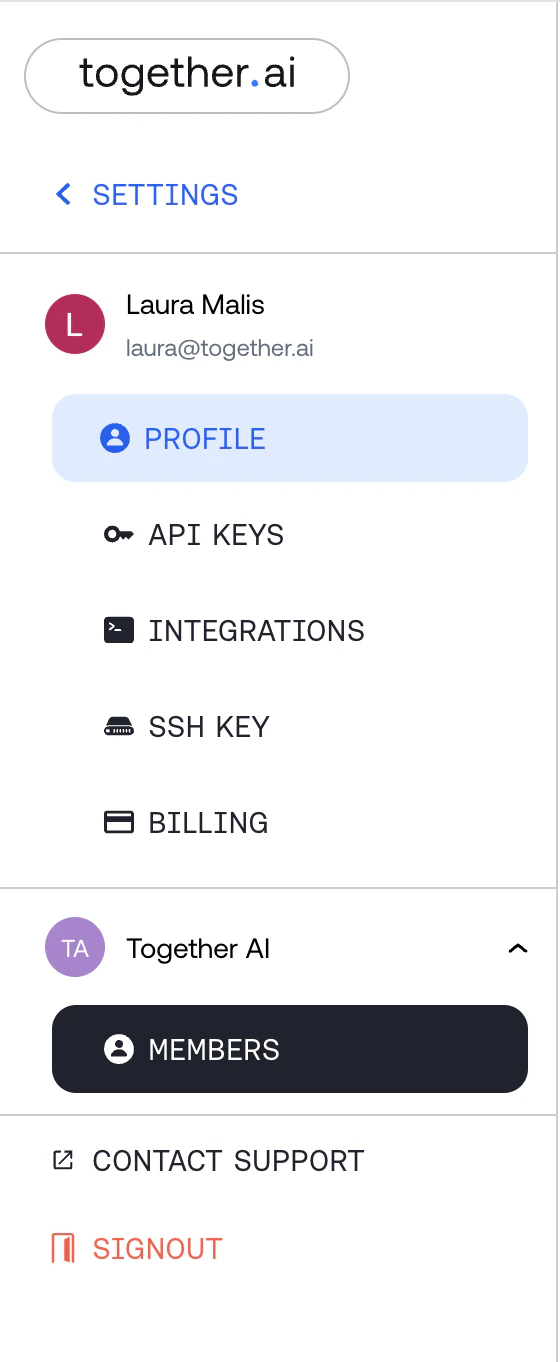
On the left hand side, select Members.
<Frame>
  <img src="https://mintcdn.com/togetherai-migration/23y4InslfSvdgi2l/images/df1e4dc-Screenshot_2024-06-17_at_3.52.04_PM.png?fit=max&auto=format&n=23y4InslfSvdgi2l&q=85&s=b4660f51adc9547313373283452e121d" alt="" width="560" height="1362" data-path="images/df1e4dc-Screenshot_2024-06-17_at_3.52.04_PM.png" />
</Frame>

At the top of Members, select “Add User”.

<Frame>
  <img src="https://mintcdn.com/togetherai-migration/23y4InslfSvdgi2l/images/c632c65-Screenshot_2024-06-17_at_3.54.41_PM.png?fit=max&auto=format&n=23y4InslfSvdgi2l&q=85&s=ade8f2d826fa1fbabff6f600ee4f9d96" alt="" width="2552" height="388" data-path="images/c632c65-Screenshot_2024-06-17_at_3.54.41_PM.png" />
</Frame>

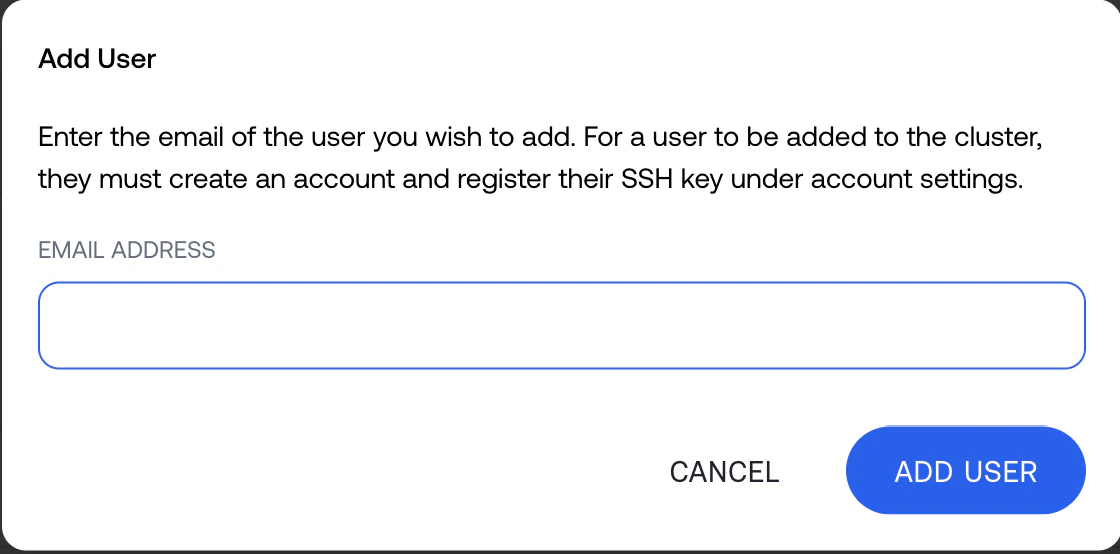
A popup will appear. In this popup, please enter the email of the user.
<Frame>
  <img src="https://mintcdn.com/togetherai-migration/23y4InslfSvdgi2l/images/b141846-Screenshot_2024-06-17_at_3.55.26_PM.png?fit=max&auto=format&n=23y4InslfSvdgi2l&q=85&s=407d7634d343d73ace6800b44cee8131" alt="" width="1120" height="554" data-path="images/b141846-Screenshot_2024-06-17_at_3.55.26_PM.png" />
</Frame>

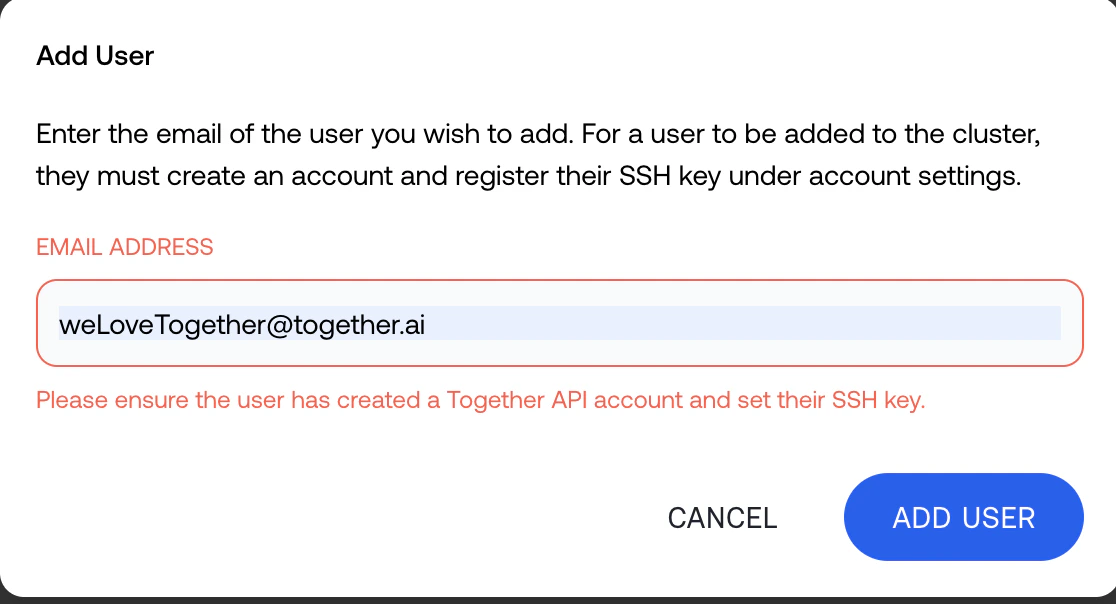
If the user does not have an Playground account or SSH key, you will see an error indicating that the user cannot be added.
<Frame>
  <img src="https://mintcdn.com/togetherai-migration/23y4InslfSvdgi2l/images/2545b20-Screenshot_2024-06-17_at_3.56.14_PM.png?fit=max&auto=format&n=23y4InslfSvdgi2l&q=85&s=616d3a5892a702d63ab5d5fc8fb5f6ce" alt="" width="1116" height="604" data-path="images/2545b20-Screenshot_2024-06-17_at_3.56.14_PM.png" />
</Frame>

Once you click add user, the user will appear in the grid.

<Frame>
  <img src="https://mintcdn.com/togetherai-migration/23y4InslfSvdgi2l/images/c17a715-Screenshot_2024-06-17_at_3.56.48_PM.png?fit=max&auto=format&n=23y4InslfSvdgi2l&q=85&s=ba276c01e943d8673dc6cd33501cd517" alt="" width="2444" height="122" data-path="images/c17a715-Screenshot_2024-06-17_at_3.56.48_PM.png" />
</Frame>

To remove this user, press the 3 dots on the right side and select “Remove user”.

<Frame>
  <img src="https://mintcdn.com/togetherai-migration/23y4InslfSvdgi2l/images/6edcd0e-Screenshot_2024-06-17_at_3.57.34_PM.png?fit=max&auto=format&n=23y4InslfSvdgi2l&q=85&s=31292484b5936a52cdb4de716de1a56f" alt="" width="2446" height="192" data-path="images/6edcd0e-Screenshot_2024-06-17_at_3.57.34_PM.png" />
</Frame>
