> ## Documentation Index
> Fetch the complete documentation index at: https://togetherai-migration.mintlify.site/llms.txt
> Use this file to discover all available pages before exploring further.
# Fine Tuning
> Finetuning Quickstart – learn how to fine-tune an LLM in 5 mins.
## 1. Register for an account
First, [register for an account](https://api.together.xyz/settings/api-keys) to get an API key. New accounts come with \$1 to get started.
Once you've registered, set your account's API key to an environment variable named `TOGETHER_API_KEY`:
```sh Shell theme={null}
export TOGETHER_API_KEY=xxxxx
```
## 2. Install your preferred library
Together provides an official library for Python:
```sh Python theme={null}
pip install together --upgrade
```
```sh JavaScript theme={null}
npm install together-ai
```
## 3. Fine-tuning Dataset
We will use a subset of the [CoQA](https://huggingface.co/datasets/stanfordnlp/coqa) conversational dataset, download the formatted dataset [here](https://drive.google.com/file/d/1PQvWQZmyN2CYtveWTg2gfQbOh6x3ZOp4/view?usp=sharing).
This is what one row/sample from the CoQA dataset looks like in conversation format:
```json small_coqa.jsonl theme={null}
{'messages':
[
{
'content': 'Read the story and extract answers for the questions.\nStory: An incandescent light bulb, incandescent lamp or incandescent ...',
'role': 'system'
},
{
'content': 'What is the energy source for an incandescent bulb?',
'role': 'user'
},
{
'content': 'a wire filament',
'role': 'assistant'
},
{
'content': 'Is it hot?',
'role': 'user'
},
{'content': 'yes',
'role': 'assistant'
},
...
]
}
```
## 4. Check and Upload Dataset
To upload your data, use the CLI or our Python library:
```sh CLI theme={null}
together files check "small_coqa.jsonl"
together files upload "small_coqa.jsonl"
```
```py Python theme={null}
import os
from together import Together
client = Together(api_key=os.environ.get("TOGETHER_API_KEY"))
file_resp = client.files.upload(file="small_coqa.jsonl", check=True)
print(file_resp.model_dump())
```
You'll see the following output once the upload finishes:
```py Python theme={null}
{
id='file-629e58b4-ff73-438c-b2cc-f69542b27980',
object=,
created_at=1732573871,
type=None,
purpose=,
filename='small_coqa.jsonl',
bytes=0,
line_count=0,
processed=False,
FileType='jsonl'
}
```
You'llbe using your file's ID (the string that begins with "file-") to start your fine-tuning job, so store it somewhere before moving on.
You're now ready to kick off your first fine-tuning job!
## 5. Starting a fine-tuning job
We support both LoRA and full fine-tuning – see how to start a finetuning job with either method below.
```sh CLI theme={null}
together fine-tuning create \
--training-file "file-629e58b4-ff73-438c-b2cc-f69542b27980" \
--model "meta-llama/Meta-Llama-3.1-8B-Instruct-Reference" \
--lora
```
```py Python theme={null}
# Trigger fine-tuning job
response = client.fine_tuning.create(
training_file = file_resp.id,
model = 'meta-llama/Meta-Llama-3.1-8B-Instruct-Reference',
lora = True,
)
print(response)
```
You can specify many more fine-tuning parameters to customize your job. See the full list of hyperparameters and their definitions [here](/reference/finetune).
The response object will have all the details of your job, including its ID and a `status` key that starts out as "pending":
```py Python theme={null}
{
id='ft-66592697-0a37-44d1-b6ea-9908d1c81fbd',
training_file='file-63b9f097-e582-4d2e-941e-4b541aa7e328',
validation_file='',
model='meta-llama/Meta-Llama-3.1-8B-Instruct-Reference',
output_name='zainhas/Meta-Llama-3.1-8B-Instruct-Reference-30b975fd',
...
status=
}
```
## 6. Monitoring a fine-tuning job's progress
After you started your job, [visit your jobs dashboard](https://api.together.xyz/jobs). You should see your new job!
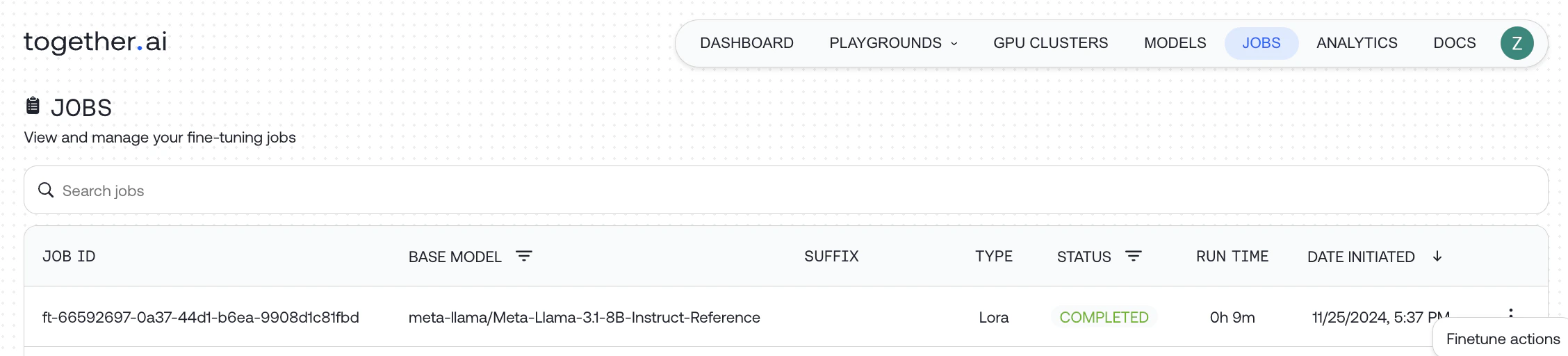 You can also pass your Job ID to `retrieve` to get the latest details about your job directly from your code:
```sh CLI theme={null}
together fine-tuning retrieve "ft-66592697-0a37-44d1-b6ea-9908d1c81fbd"
```
```py Python theme={null}
response = client.fine_tuning.retrieve('ft-66592697-0a37-44d1-b6ea-9908d1c81fbd')
print(response.status) # STATUS_UPLOADING
```
Your fine-tuning job will go through several phases, including `Pending`, `Queued`, `Running`, `Uploading`, and `Completed`.
## 7. Using your fine-tuned model
### Option 1: LoRA Inference
If you fine-tuned the model using LoRA, as we did above, then the model will instantly be available for use as follows:
```sh cURL theme={null}
MODEL_NAME_FOR_INFERENCE="zainhas/Meta-Llama-3.1-8B-Instruct-Reference-30b975fd"
curl -X POST https://api.together.xyz/v1/completions \
-H "Authorization: Bearer $TOGETHER_API_KEY" \
-H "Content-Type: application/json" \
-d '{
"model": "'$MODEL_NAME_FOR_INFERENCE'",
"messages": [
{
"role": "user",
"content": "What is the capital of France?",
},
],
"max_tokens": 128
}'
```
```py Python theme={null}
import os
from together import Together
client = Together(api_key = TOGETHERAI_API_KEY)
user_prompt = "What is the capital of France?"
response = client.chat.completions.create(
model="zainhas/Meta-Llama-3.1-8B-Instruct-Reference-30b975fd",
messages=[
{
"role": "user",
"content": user_prompt,
}
],
max_tokens=512,
temperature=0.7,
)
print(response.choices[0].message.content)
```
### Option 2: Dedicated Endpoint Deployment
Once your fine-tune job completes, you should see your new model in [your models dashboard](https://api.together.xyz/models):
You can also pass your Job ID to `retrieve` to get the latest details about your job directly from your code:
```sh CLI theme={null}
together fine-tuning retrieve "ft-66592697-0a37-44d1-b6ea-9908d1c81fbd"
```
```py Python theme={null}
response = client.fine_tuning.retrieve('ft-66592697-0a37-44d1-b6ea-9908d1c81fbd')
print(response.status) # STATUS_UPLOADING
```
Your fine-tuning job will go through several phases, including `Pending`, `Queued`, `Running`, `Uploading`, and `Completed`.
## 7. Using your fine-tuned model
### Option 1: LoRA Inference
If you fine-tuned the model using LoRA, as we did above, then the model will instantly be available for use as follows:
```sh cURL theme={null}
MODEL_NAME_FOR_INFERENCE="zainhas/Meta-Llama-3.1-8B-Instruct-Reference-30b975fd"
curl -X POST https://api.together.xyz/v1/completions \
-H "Authorization: Bearer $TOGETHER_API_KEY" \
-H "Content-Type: application/json" \
-d '{
"model": "'$MODEL_NAME_FOR_INFERENCE'",
"messages": [
{
"role": "user",
"content": "What is the capital of France?",
},
],
"max_tokens": 128
}'
```
```py Python theme={null}
import os
from together import Together
client = Together(api_key = TOGETHERAI_API_KEY)
user_prompt = "What is the capital of France?"
response = client.chat.completions.create(
model="zainhas/Meta-Llama-3.1-8B-Instruct-Reference-30b975fd",
messages=[
{
"role": "user",
"content": user_prompt,
}
],
max_tokens=512,
temperature=0.7,
)
print(response.choices[0].message.content)
```
### Option 2: Dedicated Endpoint Deployment
Once your fine-tune job completes, you should see your new model in [your models dashboard](https://api.together.xyz/models):
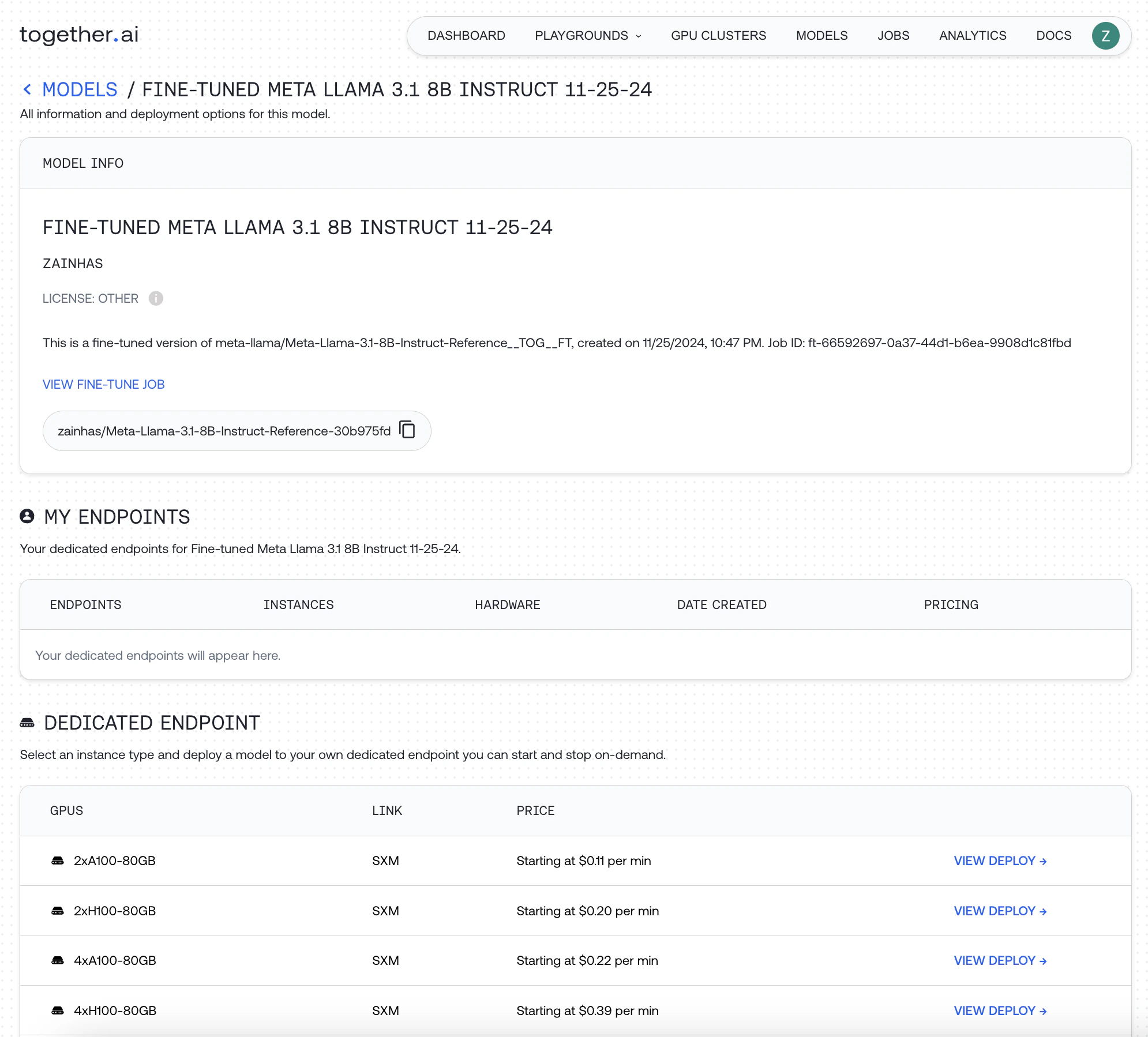 To use your model, you can either host it on Together AI, click `View Deploy` for an hourly usage fee, or download your model checkpoint and run it locally.
For more details read the detailed walkthrough [How-to: Fine-tuning](/docs/finetuning) .
To use your model, you can either host it on Together AI, click `View Deploy` for an hourly usage fee, or download your model checkpoint and run it locally.
For more details read the detailed walkthrough [How-to: Fine-tuning](/docs/finetuning) .