Running LoRA Inference on Together
The Together API now supports LoRA inference on select base models, allowing you to either:- Do LoRA fine-tuning on the many available models through Together AI, then run inference right away
- Bring Your Own Adapters: If you have custom LoRA adapters, that you’ve trained or obtained from HuggingFace, you can upload them and run inference
Supported Base Models
Currently, LoRA inference is supported for adapters based on the following base models in Together API. Whether using pre-fine-tuned models or bringing your own adapters, these are the only compatible models:Option 1: Fine-tune your LoRA model and run inference on it on Together
The Together API supports both LoRA and full fine-tuning. For serverless LoRA inference, follow these steps: Step 1: Fine-Tune with LoRA on Together API: To start a Fine-tuning job with LoRA, follow the detailed instructions in the Fine-Tuning Overview, or follow the below snippets as a quick start:--validation-file and --n-evals (the number of evaluations over the entire job) parameters. --n-evals needs to be set as a number above 0 in order for your validation set to be used.
Step 2: Run LoRA Inference:
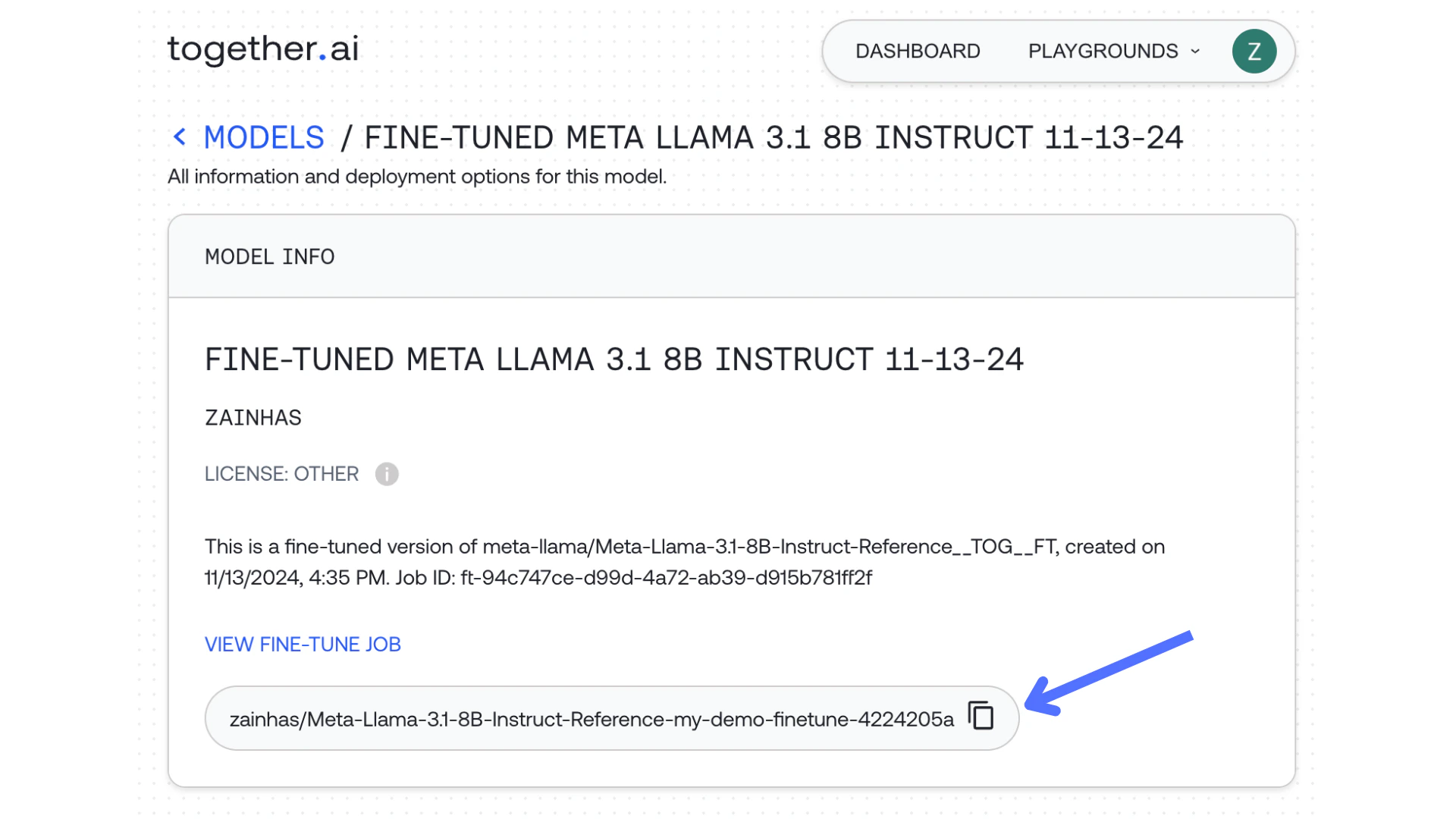
Once you submit the fine-tuning job you should be able to see the model name in the response:
Option 2: Upload a Custom Adapter & run inference on it on Together
The Together API also allows you to upload your own private LoRA adapter files for inference. To upload a custom adapter:Step 1: Prepare Adapter File:
Ensure your adapter file is compatible with the above supported base models. If you are getting the adapter from HuggingFace you can find information about the base model there as well. You need to make sure that the adapter you are trying to upload has anadapter_config.json and adapter_model.safetensors files.
Step 2: Upload Adapter Using Together API:
Source 1: Source the adapter from an AWS s3 bucket:adapter_config.json and adapter_model.safetensors files in Files and versions tab on HuggingFace.
Step 3: Run LoRA Inference:
Take the model_name string you get from the adapter upload output below, then use it through the Together API.LoRA Adapter Limits
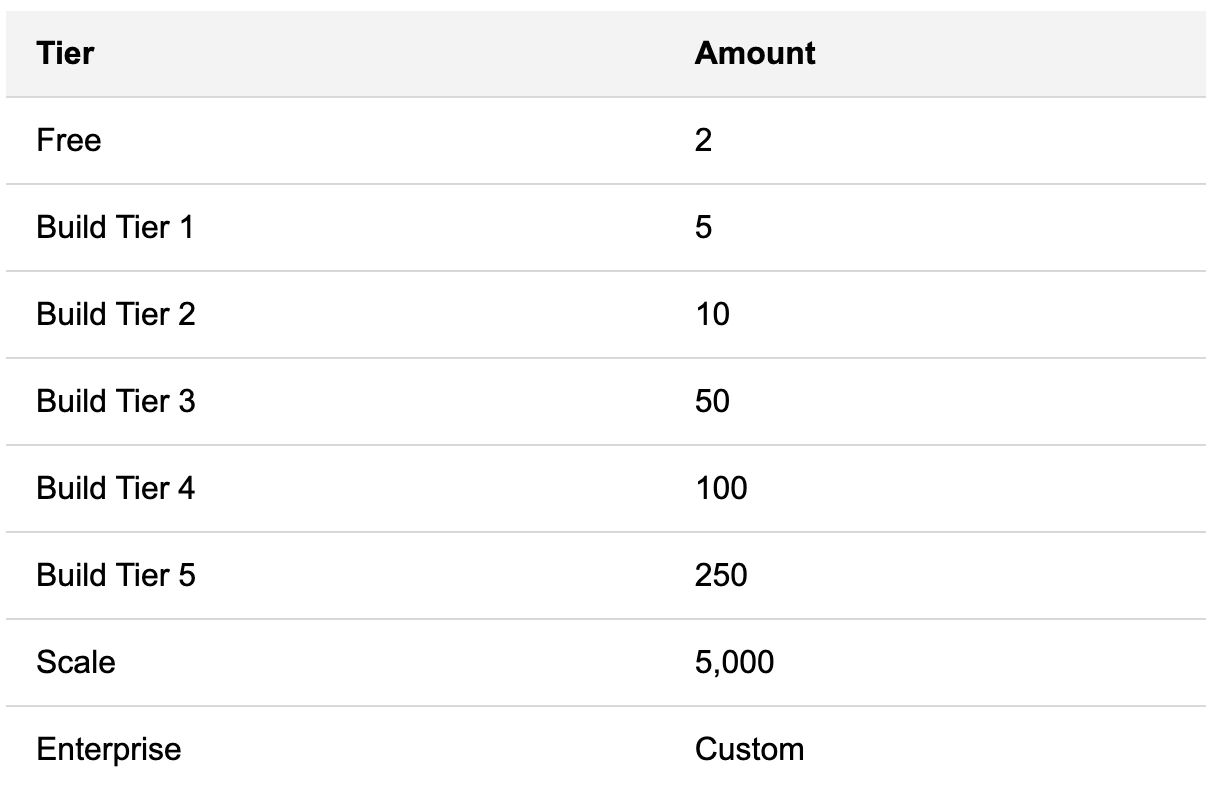
You are limited to the following number of LoRA adapters hosted based on build tier: